Windows Task Scheduler can start a program at a specific time. A blocker can prevent access to distracting apps or sites. Axorith combines those actions into one scheduled workspace, so the start time, launchers, blockers and stop rule belong to the same session.
Example
Start Programming at 09:00, stop at 18:00.
Launch the IDE and browser, apply app and site blockers, start the configured session rules.
End the session at the fixed time and optionally start the next preset.
Recurring starts
Attach the schedule to the preset.
A recurring start can be limited to selected days such as Monday through Friday. That means the schedule describes when the whole workspace begins, not only when one EXE should be launched.
Stop rules
End by time or by duration.
For a fixed routine, use a specific stop time. For a session that should last a set amount of time regardless of when it begins, use a duration. The preset can also define the next workspace to start after a natural completion.
Why not only Task Scheduler?
Task Scheduler launches a process. It does not own the workspace state.
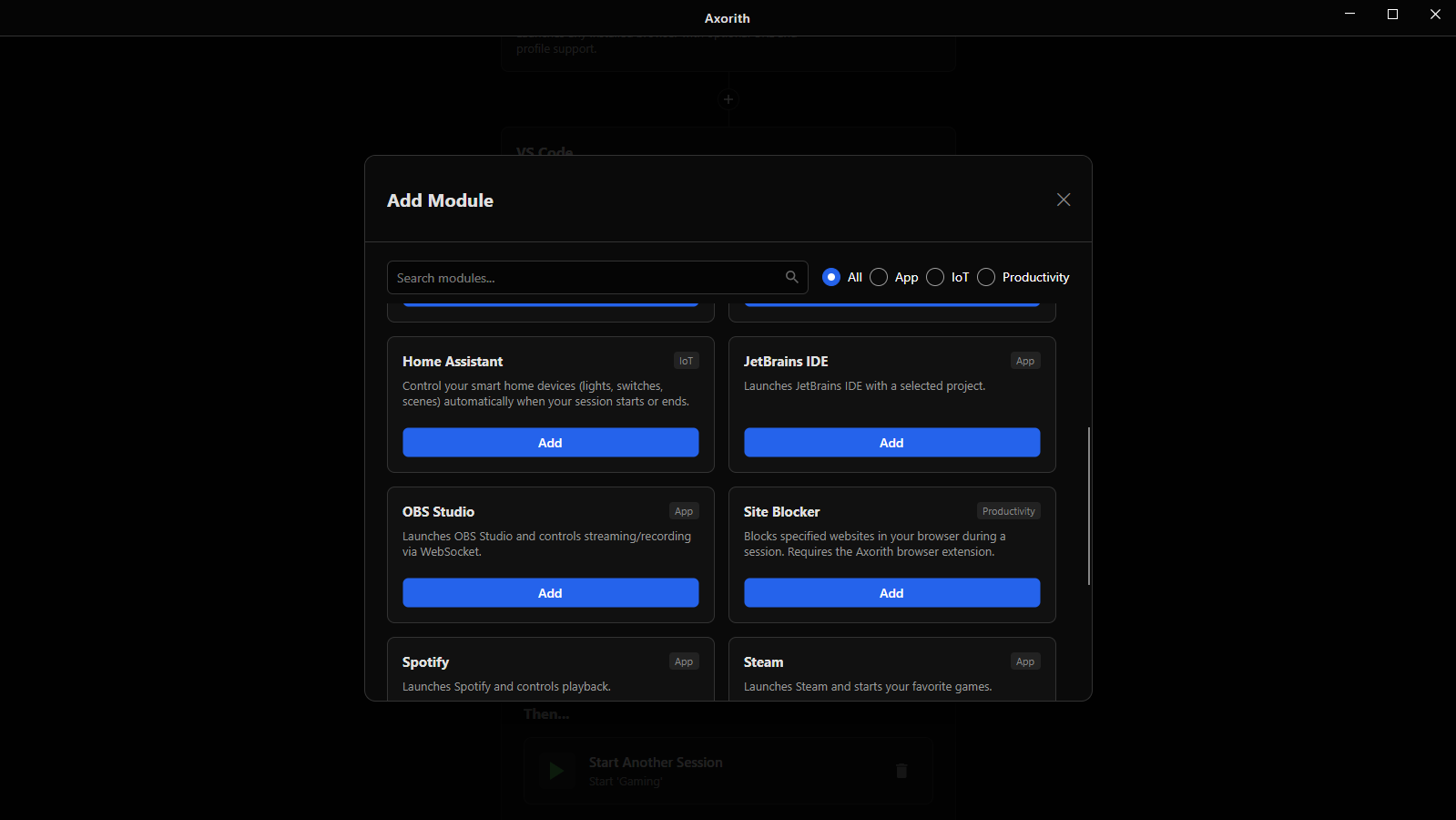
Native Windows scheduling is useful when the whole job is “run this executable.” It becomes harder to maintain when a routine also needs blockers, multiple applications, project paths, session commitment and a handoff at the end. Axorith keeps those pieces under one preset instead of spreading them across scripts and utilities.
AXORITH FOR WINDOWS
Run the setup instead of rebuilding it.
Create the workspace once, then start it manually or let the schedule do it.